What Bank Feed Rules Do (and Why They Matter)
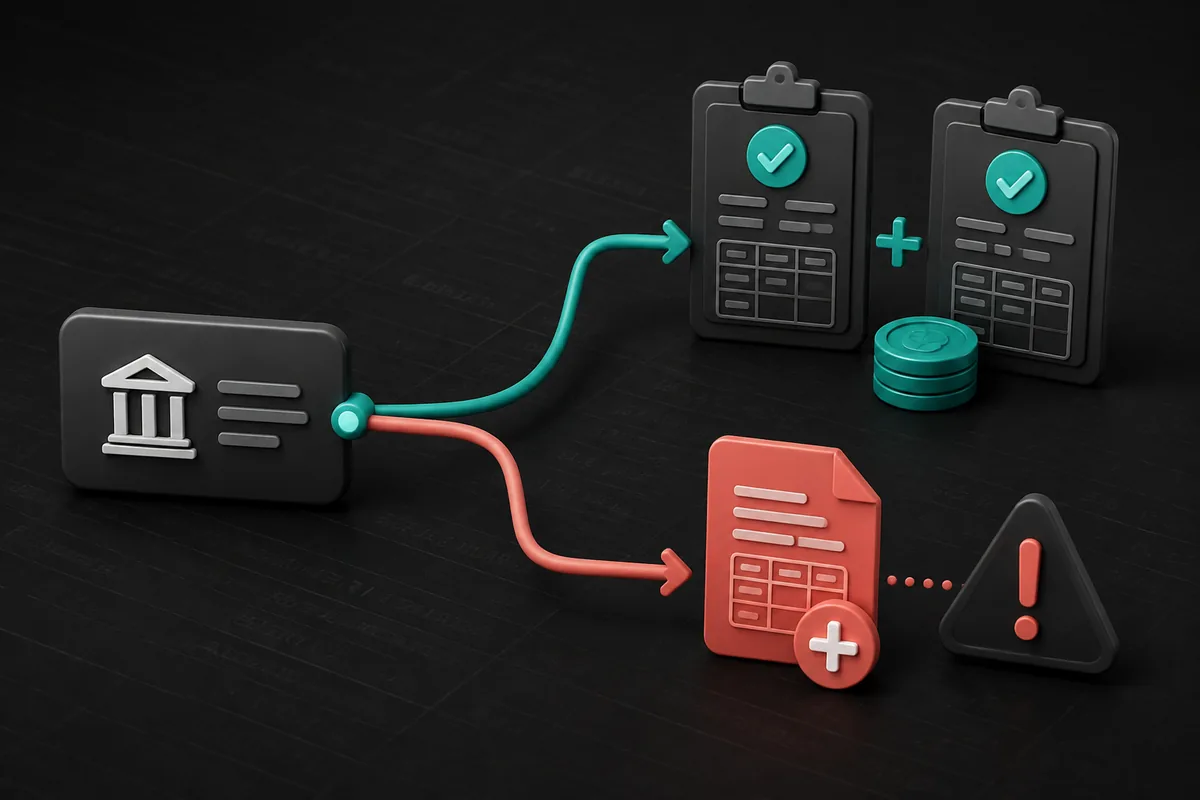
QuickBooks Online’s bank feed rules automatically categorize transactions based on criteria you define, vendor name, amount range, description text. Done correctly, rules eliminate most of the manual work in monthly bookkeeping. Done wrong, they silently miscategorize transactions for months before anyone notices.
This is one of the most common sources of book inaccuracy we see in diagnostic reviews: rules that were set up quickly, never audited, and have been misrouting expenses ever since.
The Three Types of QBO Bank Feed Rules
- Categorization rules: Assign a category (expense account) to transactions matching a condition. This is what most people think of as “bank rules.”
- Transfer rules: Flag transactions as transfers between accounts, useful for payroll runs, owner draws, or moving funds between business accounts.
- Split rules: Split a single transaction across multiple categories by percentage or fixed amount. Useful for transactions that regularly contain multiple expense types.
How to Set Up a Rule (Step by Step)
- In QBO, go to Transactions > Bank Transactions
- Click a transaction that you want to create a rule for, or go to Rules > New Rule
- Set the conditions: which account(s), what transaction type (money out / money in), and the matching criteria (description contains, amount is, etc.)
- Set the action: category to assign, payee to assign, and whether to auto-add (no review required) or just categorize for review
- Choose the priority: if multiple rules match, higher-priority rules win
- Save and apply to existing transactions if you want to backfill
Matching Conditions: What to Use and What to Avoid
| Condition Type | Best Used For | Watch Out For |
|---|---|---|
| Description contains | Recurring vendors with consistent names | Partial matches that catch unrelated transactions |
| Description is exactly | Transactions with fixed, predictable descriptions | Any variation breaks the match |
| Amount is | Fixed subscriptions or loan payments | Amount changes invalidate the rule silently |
| Amount is between | Expense categories with a predictable range | Ranges that overlap with other categories |
Common Bank Feed Rule Mistakes
These are the errors we see most often in diagnostic reviews:
- Too-broad description matches: A rule matching “Amazon” catches Amazon purchases, Amazon Web Services, and Amazon seller fees, three different categories.
- Rules that override each other: Multiple rules can match the same transaction. If priority is set wrong, the wrong rule wins. QBO silently applies the higher-priority rule, no warning.
- Auto-add on rules that were never validated: If a rule is wrong and auto-add is on, every matching transaction is miscategorized, often for months, before a reconciliation catches it.
- Transfer rules that aren’t set up: Payroll runs and owner draws that hit the bank feed as ordinary transactions, coded as expenses instead of transfers.
- Rules that don’t follow the actual chart of accounts: Categories assigned that don’t match how your accountant or CPA wants expenses classified.
How to Audit Your Existing Rules
Go to Transactions > Rules and review each rule:
- Is the category this rule assigns correct for every transaction it would match?
- Is the matching condition specific enough to avoid false positives?
- Is auto-add appropriate, or should this require review?
- Does the rule still apply? (Vendors change names, subscriptions change amounts)
Cross-check against your reconciliation register: if a vendor appears with inconsistent categorizations across months, a rule conflict is usually why.
Rules Are a Starting Point, Not a Replacement for Review
Bank feed rules reduce the manual work of categorization. They do not replace the monthly review of every transaction. Even well-configured rules require a human to catch the edge cases, the unusual purchase from a regular vendor, the duplicate charge, the refund that needs to be matched to the original expense.
If your bank feed rules are running on auto-add with no monthly review, your books are being written by an algorithm. That’s fine for routine transactions. It’s not fine for the exceptions, and there are always exceptions.
Official guidance and a practical next step
Primary source: QuickBooks guidance on matching bank transactions.
QuickBooks can speed up bank-feed review, but the rules still need narrow conditions, correct matching, and statement reconciliation. View QuickBooks Online.
Affiliate disclosure: Bugaboo Bookkeeping may earn a commission if you sign up through this link, at no additional cost to you. The relationship does not change our evaluation of the tool.
See our Washington bookkeeping and cleanup services and free QuickBooks setup checklist.
Common questions
Is a bank-feed rule the same as a reconciliation?
No. A rule helps categorize or match downloaded activity. Reconciliation compares the books to the complete bank or credit-card statement.
When should I match instead of categorize?
Match when the transaction already exists in QuickBooks. Categorizing creates a new record, so using it when a record already exists can create a duplicate.
Is automatic posting safe for every rule?
No. Use automatic posting only for narrow, predictable activity after testing the rule. Review exceptions and reconcile the account to the statement.